Snap-To-Grid parameter
The alignment grid, if active, restricts values of coordinates which can be reached my moving element boundaries (element's editing markers) with the mouse in Elements 2D window.
An alignment grid can be set in such a way, that, for example, it only
provides integral coordinates (each 1 mm) or, for example, at every 10 mm, etc.
Alternatively (or simultaneously) an alignment to already existing coordinates
of the construction (within some snapping distance) can be requested also.
With alignment (snapping grid) turned off movements of editing marker will result in coordinate values calculated by the inverse transform of pixel coordinates at the mouse position. This transformation can result in numbers with large number of decimal places which, in most cases, will not correspond to desired element coordinates.
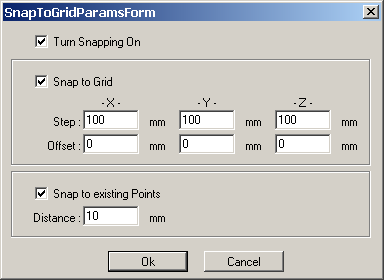
| Turn Snapping On | Activates/deactivates the snap and align to grid function.
It overrides the setting of specific alignment options below |
Alignment Grid |
|
| Snap to Grid | Activates/deactivates the snapping function on alignment
grid.
Positions of slignment grid lines can be calculated as follows: |
| Step X/Y/Z | Defines the step of an alignment grid in millimetres. Must not be 0 (> 1.0e-20) |
| Offset X/Y/Z | Defines the starting point of an alignment grid in millimetres. |
Point alignment |
|
| Snap to existing points | Activates/deactivates the snapping function onto coordinates of points already existing in the construction. |
| Distance | Define the distance between the mouse position and neighbouring point coordinate below which snapping to the point coordinate will occur. Above this distance no snapping is applied and any arbitrary coordinate can be reached. |
Alignement functions be activated and deactivated from the context menu within Elements 2D window also.
Settings of the alignment grid are saved together with application settings.
See also: Elements 2D window, Application settings