Element selection (browser) - window
Element selection (element browser) window shows the list of all input elements of the construction (or elements of the active layer ) in specific order of overlapping .
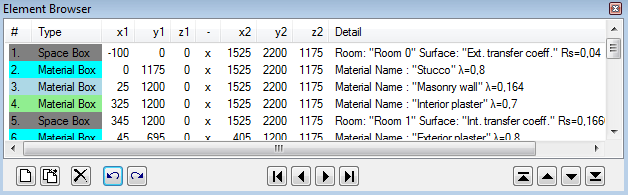
From that window you can select elements for editing, insert new elements, reorder elements in their overlapping order (promote or relegate) and also delete elements.
| Element list | List of all elements entered (or elements of the active layer ) in specific order of overlapping. |
 New New |
Inserts a new element (of type "Empty") to the end of the list. |
 Duplicate Duplicate |
Inserts a copy of currently selected element(s) into the
element list. Further details on duplicate function are provided in the description of the context menu of element editing functions . |
 Delete Delete |
Deletes selected element(s) from the list. After deleting one selected element the selection move to the one before the deleted. When first element has been deleted the one becoming first after deletion is selected. If more then one element are selected actual deletion is executed if additionally confirmed by the user. See also: Cut elements to clipboard |
 Undo Undo(Ctrl-Z) |
Undoes (reverts) the latest action(s) in the given
editing context
. |
 Redo Redo(Ctrl-Y) |
Redoes (reapplies) the action lately undone in the given editing context. |
 First element First element |
Selects the first element in the element list. |
 Previous Previous |
Selects an element which is previous to the currently selected in the element list. |
 Next Next |
Selects an element which is next to the currently selected in the element list. |
 Last element Last element |
Selects the last element in the element list. |
 Relegate
to Backmost Relegate
to Backmost
|
Reorders selected element(s) in the list to the "backmost" position. The element is then located
at the beginning of the list thus now being
potentially overlapped by
all other elements. If more elements are selected then each one is relegated by the same distance as the backmost selected one. This action is inhibited if the chosen element does already occupy the first (backmost) location in the list. |
 Relegate Relegate
|
Reorders selected element(s) in the list one position
"backwards". The element is then located earlier in the list thus now being
potentially overlapped by
another element which have thus been promoted to the location of the element
relegated. If more elements are selected then each one is relegated by one position in the list order. This action is inhibited if the chosen element does already occupy the first (backmost) location in the list. |
 Promote Promote
|
Reorders selected element(s) in the list one position
"towards front". The element is then located later in the list thus now
potentially overlapping
another element which have thus been relegated to the location of the
element promoted. If more elements are selected then each one is promoted by one position in the list order. This action is inhibited if the chosen element does already occupy the last (front most) location in the list. |
 Promote
to Frontmost Promote
to Frontmost
|
Reorders selected element(s) in the list to the "frontmost" position. The element is then located
at the end of the list thus now
potentially overlapping all other elements. If more elements are selected then each one is promoted by the same distance as the frontmost selected one. This action is inhibited if the chosen element does already occupy the last (front most) location in the list. |
| Click right mouse button | Exposes the context menu of element editing functions |
| Click left mouse button | Selection of an element in the element list |
| Double-click left mouse button | Selection of an element in the element list and exposing the Element editor window for that selected element. |
| Click CTRL+left mouse button | Extend the selection with the one element clicked or removes the element clicked from the current selection |
| Click SHIFT+left mouse button | Extends the selection with all elements between the one clicked and the one selected earlier. |
| Drag left mouse button | Selecting of one or more elements touched with the mouse pointer during the drag operation. |
Elements list
Each line of the elements list represents one input element. The line shows the type of the element (Space, Material, Power source, Empty), its position given by entered coordinates (x1,y1,z1)-(x2,y2,z2), name of the material used or of the surface, space or power source together with its physical properties such as heat conductivity of the material or surface heat transfer coefficient.
When the mouse pointer hovers over one element the properties of the element under the pointer are shown in a tooltip (small informational popup window). The tooltip text disappears after 5 seconds or on any mouse movement or click.
Columns Number# and Type are rendered by approximating the colour of an element (the text is rendered in the contrast colour depending on the value of the element colour).
Element editing
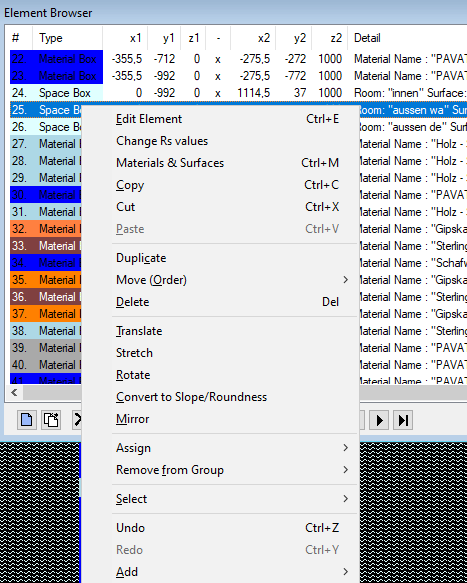
A double click over a element's line in the elements list will open the Element editor window or expose it if it is already open.
Clicking the right mouse button over the elements list will reveal (possibly very complex) context menu of element editing allowing choice of element processing functions. This context menu and its commands are common to all element editing windows and is described separately.
Element selection
Clicking with left mouse button with the mouse pointer placed over a line within the elements list will select the element clicked.
Keyboard's arrow keys can also be used for such single element selection.
 Element selection buttons can be used to select single elements: the first in the order, previous to the
currently selected, next to the current or the last one in the element list.
Element selection buttons can be used to select single elements: the first in the order, previous to the
currently selected, next to the current or the last one in the element list.
Selection of multiple elements
While holding the control-key (CTRL) one can click on one line of the element list to add that element to the selection or to remove it from the current selection.
While holding the shift-key (SHIFT) one can click on one line of the element list to select all elements between the line clicked and the element selected just beforehand.
The selection can also be extended by dragging with the pointer over elements while holding the left mouse button pressed.
Reordering (promoting/demoting) of elements
The order of elements shown in the element list is significant for resulting overlapping effect of elements intersecting one another. Changing the order of elements in the element list leads to change in the overlapping effect. By overlapping elements in the order of input one receives automatically dynamic intersection of elements positioned earlier in the order.
 Command buttons "Promote" or "Relegate" are used to move
selected elements in the list and thus they change the order of overlapping
intersections.
Command buttons "Promote" or "Relegate" are used to move
selected elements in the list and thus they change the order of overlapping
intersections.
Promoting and relegating is also possible of several elements are selected. Each selected element is shifted by one position until the block of selected elements reaches the start or the end of the list. If the first or last selected element has already reached beginning (or end) of element list no further reordering action in this direction can be performed any more - this limitation provides the ability to revert the operation in the opposite direction to eventually restore to the original situation (order).
See also: Element Editor, Order of overlapping , context menu of element editing , Types of elements , Layers window